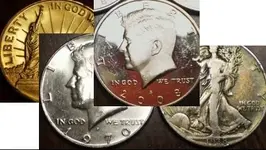
Darth, you didn't mention if you're using a film camera or a digital one, but that's OK because you can use this technique with either.
I'm presuming you are taking photos of detecting finds and hopefully are using a tripod. If you don't have a tripod, get one because for close up pics it is necessary for clear, focused shots. You can find very reasonably priced ones at Wal-Mart. Then turn off the flash and use a table lamp set off to the side. The side lighting should prevent the light from reflecting into the camera lens. Plus, you can see if there are any reflections before taking the pic. If you are using a film camera, the technique is the same. Your light source must hit your subject from an angle that won't "ricochet" through the lens.
Now for resizing your photos. If your computer uses Windows operating system, then it's easiest to use the Paint program. You simply open the photo file with Paint; then click "Image" on the tool bar. In the drop down menu, click "Resize/Skew". That will open a small work window that allows you to increase or decrease your photo by percentage of the original. You change the number in the horizontal box and the vertical box then click "OK". You will see the new size on the Paint working window. Click "Image" on the tool bar again and select "Attributes". The small working window will tell you the size of the photo. You can select inches or pixels and read the values in the small boxes. Generally speaking, a 3 inch by 3 inch size will usually give you a good pix for posting. Once you get a size you want for posting click "File" on the tool bar and click "Save As...". I've found it is very easy to just save the pix as a .jpg to Desktop, then it is easier to find it with the "Browse" button when you're posting it. If the picture doesn't make you happy when you actually post it, then use the "remove" feature on the thread and adjust the pix again and repost.
It is very easy to resize your photos this way and will save you time and computer space when you don't have to look for a special application. Windows Paint comes with all Windows Operating Systems such as Windows XP and Windows Vista. You'll find that Paint is actually very useful.
Good luck and have fun.