What's new

Please Help ID

dann8710

Tenderfoot
Joined
Dec 3, 2009
Messages
5
Reaction score
0
Golden Thread
0
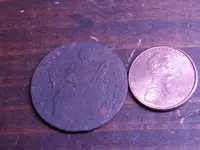
This coin is very worn. It appears to have a woman sitting with branch in one hand and spear in the other just like a British farthing. However, It does not say Britannia. Instead it says something that ends in a B followed by a star, and yes, I'm certain it is a B. The other side of the coin is completely unreadable.

Please let me know what you think.
 
Another thing I forgot to mention is that it is slightly larger than a farthing.
 
Welcome to T-Net dann8710.


Can you post a pic of your coin?
 
Thank you very much for the warm welcome. Here is a pic.
 

Attachments

  • DSC07126.webp
    DSC07126.webp
    29.6 KB · Views: 317
Thank you so much, I think you are right.

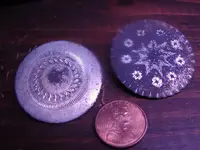
I found these in the same hole.

and how do you make the photo's the right size? thank you for the resize.DSC07127.webp
 
Your second pic looks like a button. For an Id on it post over in "What is It?", lots of very helpful, knowledgeable people there.
http://forum.treasurenet.com/index.php/board,14.0.html

For re-sizing photos I find the program "Paint" easy to use when re-sizing photos. Follow these steps, there are several other ways to go also but you should have this program on your computer. After a doing a few photos you will be able to re-size and save in about ten seconds. :icon_thumright:

_________________________________________________

-Open the program "Paint".

-Then click "File" and then "Open". This will bring up the folders/files on your computer.

-Select the file you wish to work with.

-With the file/image open click on "Image". This will open a drop down menu.

-From the drop down menu, click "Stretch/Skew". This will open another box.

-In this box you will see "Stretch" with options for "Horizontal" and "Vertical". The %'s for these will be at 100.

-Change the value from 100 to your new percentage (either shrinking or enlarging) and click OK.

-Save the newly sized photo as a new file so as to retain your original.
 
Thank you again. This will make it much easier to participate in the forum.
 
DigginThePast said:
Your second pic looks like a button. For an Id on it post over in "What is It?", lots of very helpful, knowledgeable people there.
http://forum.treasurenet.com/index.php/board,14.0.html

For re-sizing photos I find the program "Paint" easy to use when re-sizing photos. Follow these steps, there are several other ways to go also but you should have this program on your computer. After a doing a few photos you will be able to re-size and save in about ten seconds. :icon_thumright:

_________________________________________________

-Open the program "Paint".

-Then click "File" and then "Open". This will bring up the folders/files on your computer.

-Select the file you wish to work with.

-With the file/image open click on "Image". This will open a drop down menu.

-From the drop down menu, click "Stretch/Skew". This will open another box.

-In this box you will see "Stretch" with options for "Horizontal" and "Vertical". The %'s for these will be at 100.

-Change the value from 100 to your new percentage (either shrinking or enlarging) and click OK.

-Save the newly sized photo as a new file so as to retain your original.
Nice Dandy Buttons :icon_thumleft:...if you have a Digital camera, have a look in the menue for picture size, when taking close ups I use 684x600 range, then you can crop the pictures much easier :thumbsup:

SS
 

Users who are viewing this thread

Back
Top Bottom