What's new

test

bilt46

Sr. Member
Joined
Oct 11, 2008
Messages
382
Reaction score
58
Golden Thread
0
Location
around town
Detector(s) used
CZ5
Primary Interest:
All Treasure Hunting
.... :-)
 

Attachments

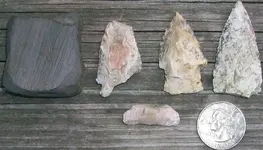
  • 000_0005.webp
    000_0005.webp
    216.7 KB · Views: 250
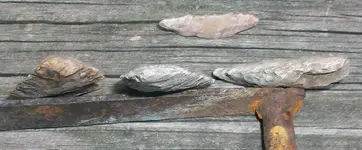
  • 000_0004.webp
    000_0004.webp
    171.6 KB · Views: 233
..
 

Attachments

  • 000_0003.webp
    000_0003.webp
    360.4 KB · Views: 238
  • 000_0003.webp
    000_0003.webp
    360.4 KB · Views: 241
  • 000_0003.webp
    000_0003.webp
    360.4 KB · Views: 252
Felinepeachy said:
BIG test LOL.

Do you need some help?

Yes please...Thank you...
 
I find the program "Paint" easy to use when re-sizing photos. Follow these steps, there are several other ways to go also but you should have this program on your computer.

_____________________________________________________________________________

-Open the program "Paint".

-Then click "File" and then "Open". This will bring up the folders/files on your computer.

-Select the file you wish to work with.

-With the file/image open click on "Image". This will open a drop down menu.

-From the drop down menu, click "Stretch/Skew". This will open another box.

-In this box you will see "Stretch" with options for "Horizontal" and "Vertical". The %'s for these will be at 100.

-Change the value from 100 to your new percentage (either shrinking or enlarging) and click OK.

-Save the newly sized photo as a new file so as to retain your original.
 
DigginThePast said:
I find the program "Paint" easy to use when re-sizing photos. Follow these steps, there are several other ways to go also but you should have this program on your computer.

_____________________________________________________________________________

-Open the program "Paint".

-Then click "File" and then "Open". This will bring up the folders/files on your computer.

-Select the file you wish to work with.

-With the file/image open click on "Image". This will open a drop down menu.

-From the drop down menu, click "Stretch/Skew". This will open another box.

-In this box you will see "Stretch" with options for "Horizontal" and "Vertical". The %'s for these will be at 100.

-Change the value from 100 to your new percentage (either shrinking or enlarging) and click OK.

-Save the newly sized photo as a new file so as to retain your original.

Thank you..
 

Attachments

  • 000_0005.webp
    000_0005.webp
    216.7 KB · Views: 233
  • 000_0005.webp
    000_0005.webp
    216.7 KB · Views: 219
..
 

Attachments

  • 000_0003.webp
    000_0003.webp
    10.9 KB · Views: 170
  • 000_0003.webp
    000_0003.webp
    10.9 KB · Views: 181
  • 000_0003.webp
    000_0003.webp
    10.9 KB · Views: 180
I re-sized at 45%.
 

Attachments

  • test pic.webp
    test pic.webp
    54.1 KB · Views: 222
I see you got it.

Nice points! :icon_thumright:
 
See you're learning. :hello2:

Don't forget, if you don't like the size, while still in Paint, go to edit and click undo resize and then try another size.
 
THANK You Felinepeachy and DigginThePast, I almost gave up I couldnt even find paint.. I cant figure out how to save the paint place for later...I did try to undo and could not make the pics any bigger..Thanks again for the help, I dont post much because of the pic problem, your info will help me to do it now...
Thanks,
BILLT.
 
bilt46 said:
THANK You Felinepeachy and DigginThePast, I almost gave up I couldnt even find paint.. I cant figure out how to save the paint place for later...I did try to undo and could not make the pics any bigger..Thanks again for the help, I dont post much because of the pic problem, your info will help me to do it now...
Thanks,
BILLT.

If you're using Windows 7, you can drag the program to the toolbar on the bottom of the screen or if you're using Windows XP before you open the program right click on it and click "send to" and on the next menu that pops open click "desktop(create shortcut)" Then the program shortcut will be right on your desktop. If you need more help let us know, I can pm you my number and walk you through it on the phone. :tongue3:
 
Click "Start",
Click "All Programs",
Click "Accessories",
Look for "Paint", right click on it and click "Send to",
Click "Desktop (Create Shortcut)"

This will put an icon on your desktop. To start the program, double click the icon. :icon_thumright:

You can remove this shortcut any time by right clicking and sending it to the recycle bin. Doing this will not delete the program, only the shortcut on the desktop.

edit to add: Sorry Felinepeachy, somehow missed that you already posted the info, not even three hours of sleep last night.

 
DigginThePast said:
Click "Start",
Click "All Programs",
Click "Accessories",
Look for "Paint", right click on it and click "Send to",
Click "Desktop (Create Shortcut)"

This will put an icon on your desktop. To start the program, double click the icon. :icon_thumright:

You can remove this shortcut any time by right clicking and sending it to the recycle bin. Doing this will not delete the program, only the shortcut on the desktop.

edit to add: Sorry Felinepeachy, somehow missed that you already posted the info, not even three hours of sleep last night.


Done, Thanks,
BILLT.
 
Before I forget, there is one other way, whenever you right click on a picture that you have saved, it will give you the option of
"Open With". If you move your mouse to that, another menu pops open allowing you to open with "Paint"
 
Felinepeachy said:
Before I forget, there is one other way, whenever you right click on a picture that you have saved, it will give you the option of
"Open With". If you move your mouse to that, another menu pops open allowing you to open with "Paint"

Thanks I like this one
 

Attachments

  • 000_0001_00.webp
    000_0001_00.webp
    19.1 KB · Views: 208

Users who are viewing this thread

Back
Top Bottom